
IMPORTANT: Email address used in testsPlease always use a fresh, unique email address for every new test! If you have a Gmail account, you can add a plus (+) and a random string before the @ sign. Ex. myemailaddress**+123**@gmail.com
Running test transactions
Make sure you pass the is_test parameter and set it to 1.
Credit Card test transactions
- Credit card number: 4111111111111111
- Credit card number for 3DS: 4000012892688323
- Expiration month: Any month. Use a leading zero when needed e.g. 09
- Expiration year: Any future year. e.g. 2025
- CVV: 123
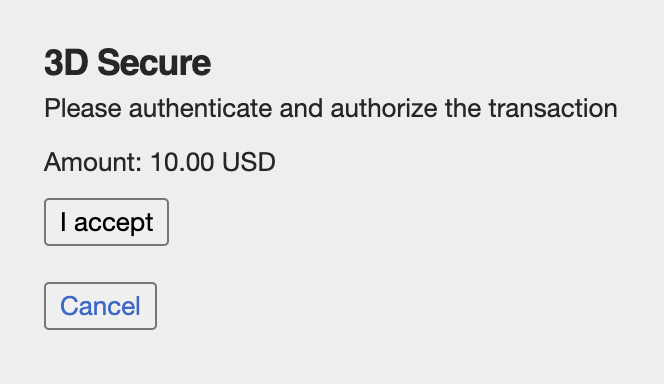
Click on "I accept" to simulate successful 3D Secure authentication and authorization of the transaction.
PIX test transactions
When using payment_method = pix, the API response will include a verification_url. The user must be redirected to this URL to continue the payment flow.
PIX-specific requirements:
- customer_details.country is mandatory and must be set to BR (Brazil).
- For successful test transactions, send:
- customer_details.first_name = "Paid"
- customer_details.last_name = "Paid"
- To intentionally trigger a rejected transaction, send:
- customer_details.first_name = "Declined"
- customer_details.last_name = "Declined"
- The customer_details.national_identifier (CPF) can be provided.
- Use any of the following CPF values for testing:
- 842.989.480-21
- 661.391.167-40
- 543.866.314-96
- 944.749.092-16
- Use any of the following CPF values for testing:
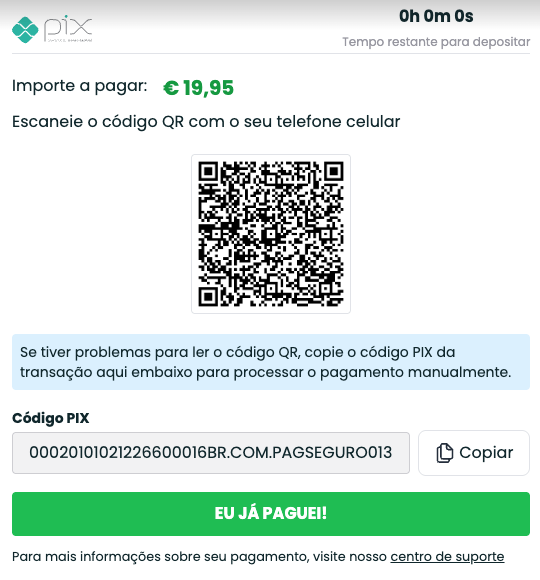
During testing, the sandbox environment will show a confirmation screen similar to the one below. No action is required from the user: the payment will be automatically confirmed, and after a few seconds, the user will be redirected to Vendo’s confirmation page. All postbacks will be executed as expected.
Pay by Bank test transactions
When setting the payment_method=paybybank you will get the verification_url in the API response. You need to redirect the user to that URL.
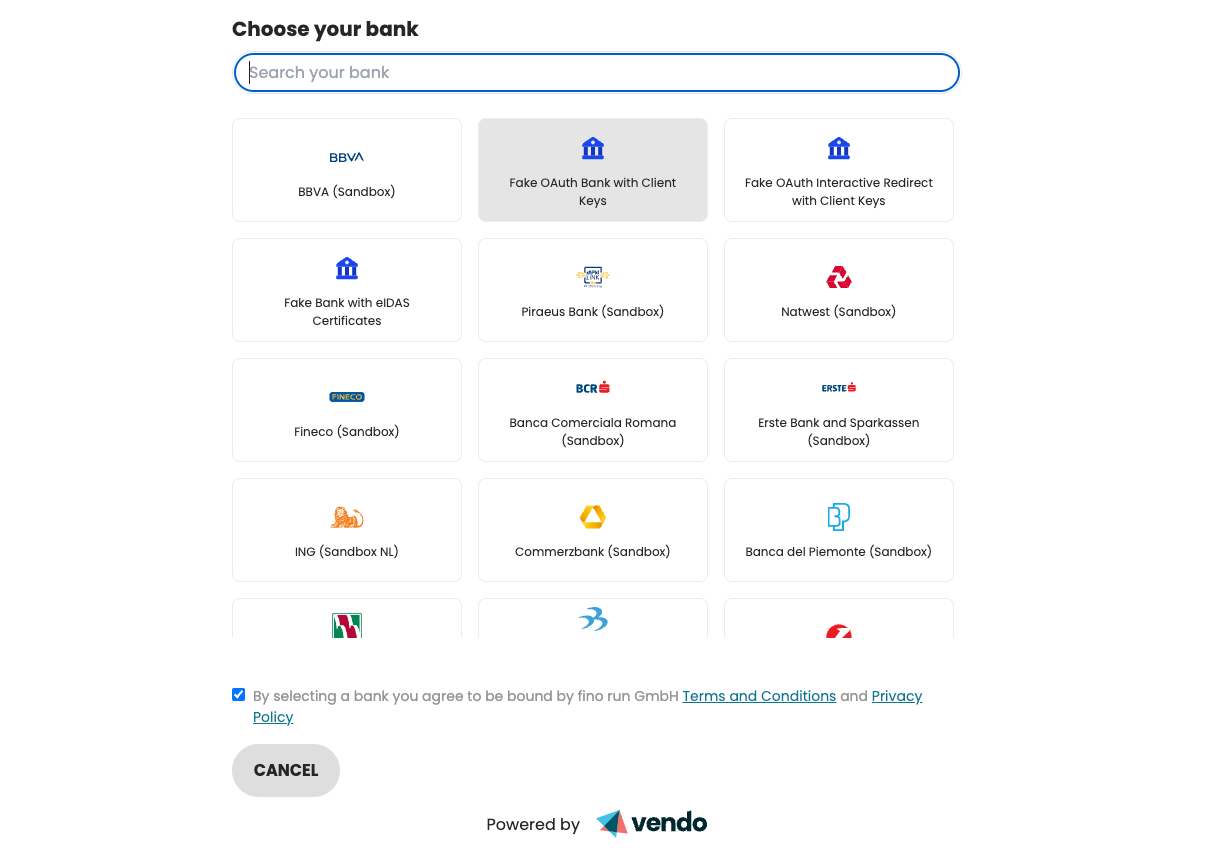
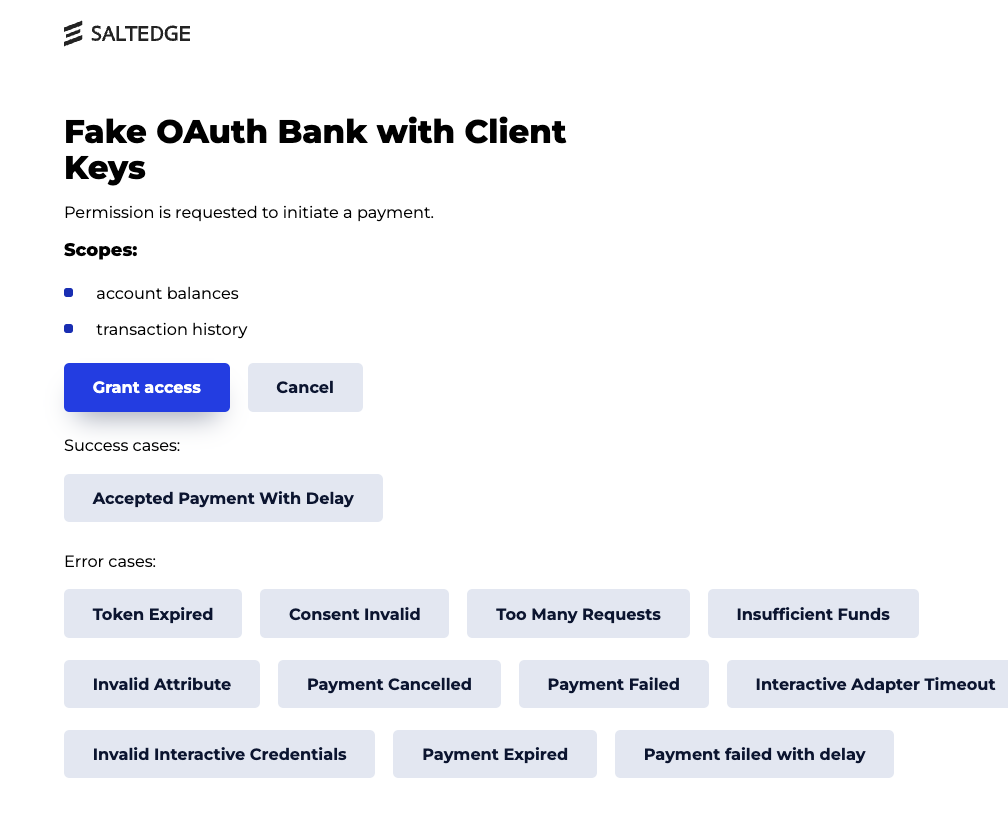
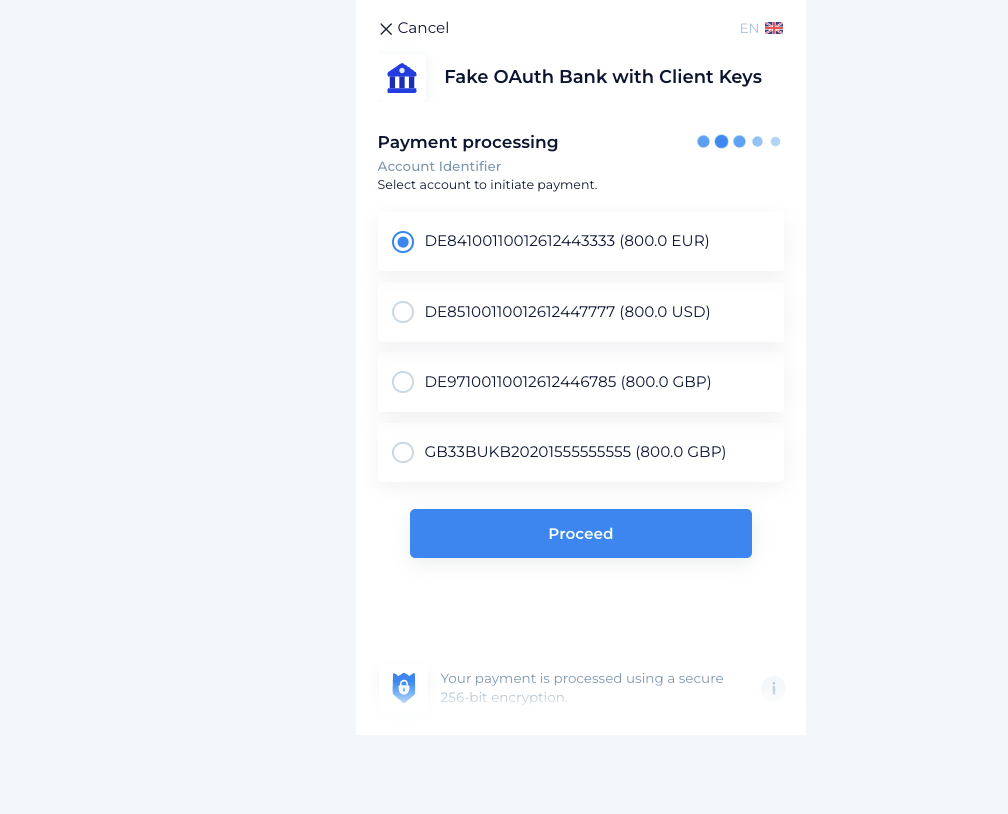
When testing this integration you will get the following screens from our sandbox environment.
- Click on the "Fake OAuth Bank with Client Keys" on the Choose your bank page.
-
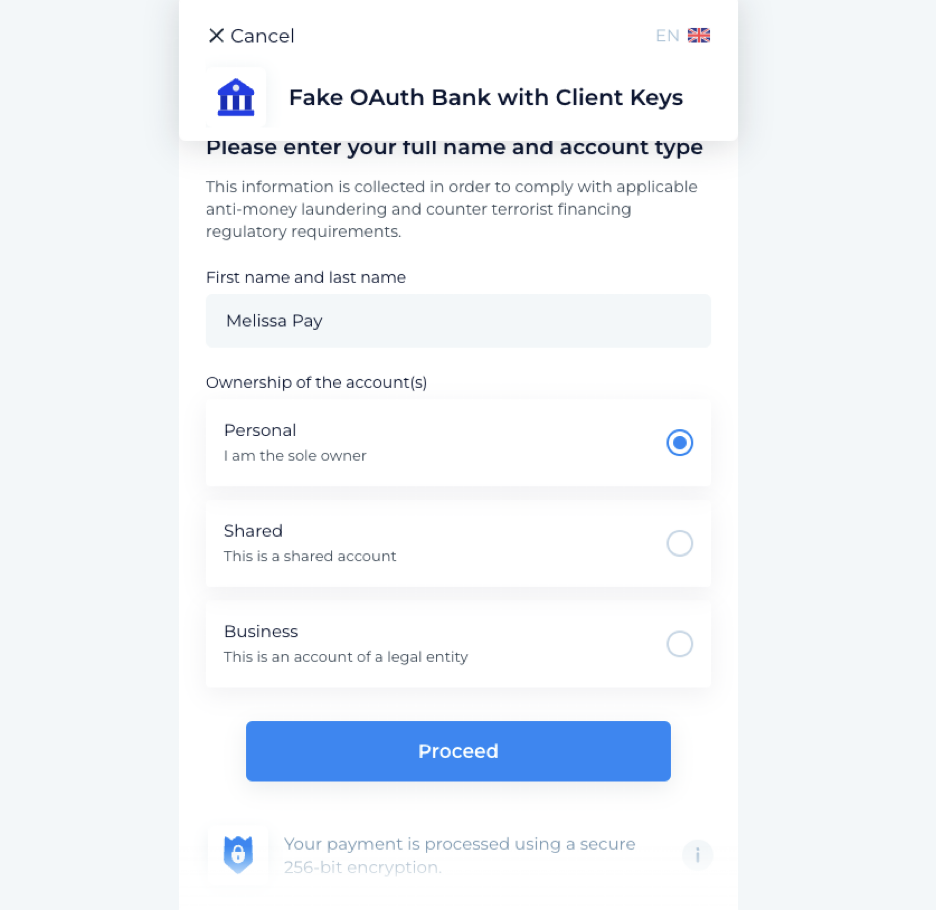
Fill in your first name and last name, Ownership of the account(s) will be preselected and click on Proceed
-
Click on “Grant access”
-
Select any account and click proceed
Wallet/Google Pay test transactions
Currently there is no support for creating test transactions with a wallet payment method: Google Pay
Please do penny tests with real cards and transactions